
Subcontractor Registered Details
To manually add a new subcontractor, select CIS > Subcontractors > New.
Complete the Registered Details for a subcontractor as follows:
Trading Name
Enter the subcontractor's trading name
Type
Select the business type applicable to the subcontractor, i.e. Sole Trader, Company, Partnership or Trust
Unique Tax Reference (UTR)
Enter the subcontractors 10 digit UTR number as issued by HMRC
Other Information required for Verification
Sole Trader:
- First Name
- Middle Name
- Surname
- UTR
- NINO (if known)
Partnership
- Individual Partner Name
- Partner's own UTR (NOT Partnership) or NINO
Company/Trust
- Company Name, if different from trading name
- Company Unique Taxpayer Reference
- Company Registration Number
VAT Details
Indicate if the subcontractor is registered for VAT and include the VAT number where applicable

Verification
The subcontractor can be verified online by selecting Verify online:
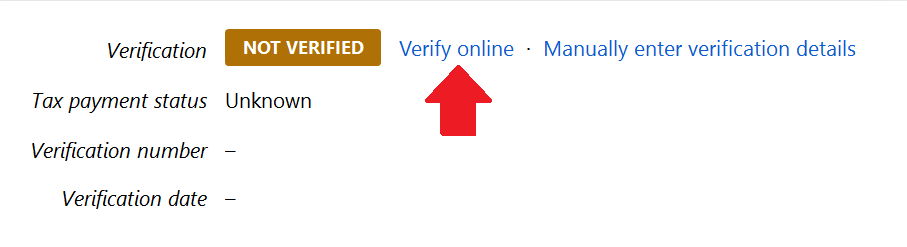
Choosing to 'verify online' will prompt BrightPay to create a Subcontractor Verification Request, including any subcontractors you wish to verify. This Verification Request can be sent directly to HMRC, after which BrightPay can subsequently update the subcontractors with the response received back from HMRC.
BrightPay also facilitates the manual entry of verification details: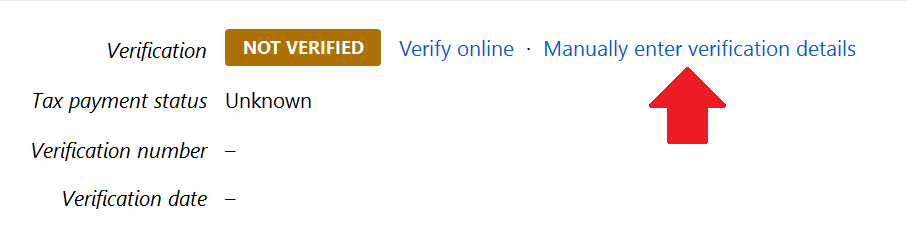
However, please note, since April 2017, HMRC will no longer accept requests for subcontractor verifications by telephone – all such requests must be done online.
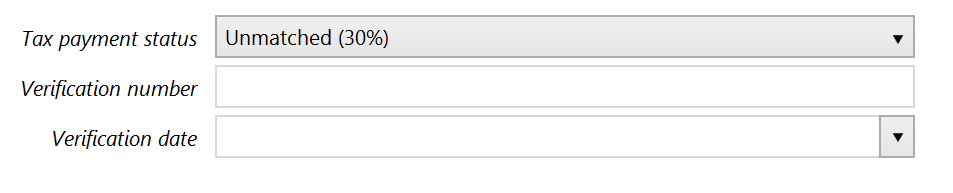
Tax Payment Status
Subcontractors are all paid in line with one of three tax status:
- Gross - Paid without deduction
- Net of Standard Deduction - Deduct tax at 20%
- Net of Higher Deduction - Deduct tax at 30%
THE SUBCONTRACTOR'S 'REGISTERED DETAILS' ARE NOW COMPLETE. SELECT THE ‘ADDITIONAL DETAILS’ TAB TO CONTINUE TO SET UP THE SUBCONTRACTOR'S RECORD.