
BrightPay is able to process opt-out requests and issue refunds, where applicable.
If an opt-out notice is received for an employee, simply access the employee’s automatic enrolment utility and select the opt-out option: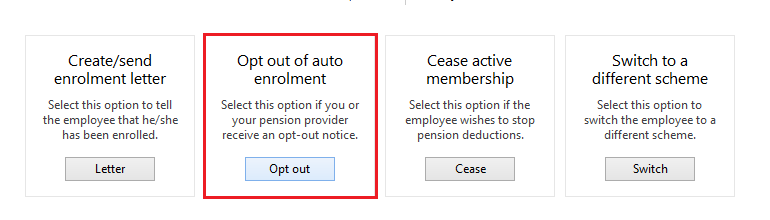
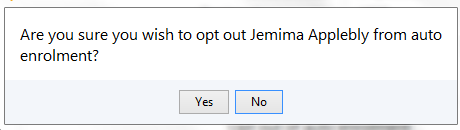
Simply enter in the opt-out date and opt-out reference (if applicable) and press Continue, followed by OK.
Please note: the opt-out date is the date that the opt-out request is received.
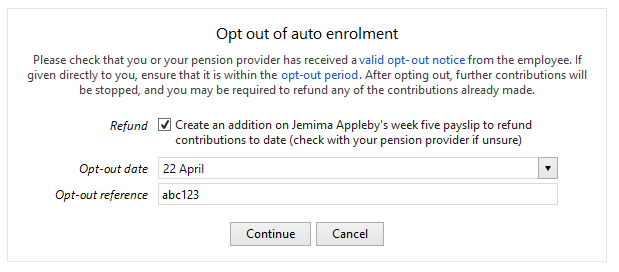
If the employee has already made contributions, and you wish to refund these through the payroll, ensure that the Refund button remains ticked, as shown above.
Contributions already made by the employee will subsequently be refunded to them as follows in the next pay period processed for them: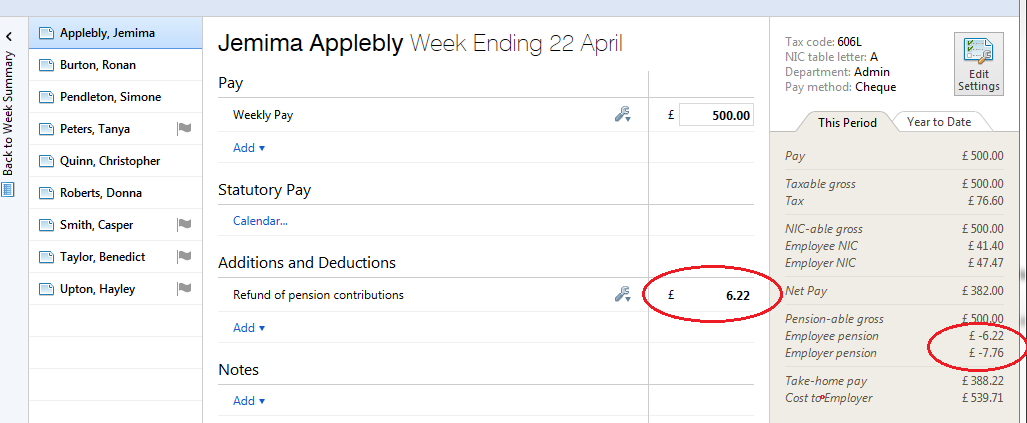
Opting out will also refund any employer contribution made. This will be shown on the employee's payslip along with the refund of the employee contribution.
If the wrong opt-out date has been entered or you need to change the date, go to the Automatic Enrolment section for the employee and click on the underlined date. Enter the correct date in the pop up field that appears on screen and save.
If you have processed an opt out for an employee and the refund option wasn't ticked and it should have been - re-open the payslip (if already finalised), then go to the employee's Automatic Enrolment section under the Employees utility. At the bottom of the screen, click the small blue 'Undo' and then confirm you wish to reverse the opt out. It will take you back to the 'enrolled' screen.
Process the opt out again, ensuring that the refund box is enabled and save. The refund will now appear on the employee's payslip.
Please note: employees can only opt out of automatic enrolment if they are within their opt-out window.
If their opt-out window has expired and you cannot see an opt out option, you must choose the 'Cease active membership' option instead. In this instance, no refund of contributions to date will be made.
FAQs
Q. Can an employee be enrolled / re-enrolled and choose to opt out in the same payment period?
A. Yes an employee can opt out within the same period that they were enrolled or re-enrolled. The employer is required to enrol the employee to fulfil their AE duties and send the enrolment summary to the pension provider. They also need to issue the employee with an enrolment letter. If the employee chooses to opt-out before payroll is processed for that period, the pension provider will send the employer an opt-out notice. The opt-out date and reference (if applicable) should be entered into BrightPay.
As the employee was enrolled / re-enrolled and opted out in the same payroll period, no pension contributions should be taken (and no refund required).
Q. What if the employer receives an opt-out notice after the payroll period has been processed and the employee has been paid?
A. The employee can be opted out in the next period and issued a refund via payroll. You may need to enter an opt out date within the current period in order to process the refund. Finalise the payslips as usual. Then go back to the AE section for the employee - the Opt out date should match the same date provided by the pension provider. If it needs to be amended, click on the date and enter the correct one.
Q. An employee was enrolled in month 12 of last tax year and now opted out in month 1 of the new tax year, why is there no refund appearing on the payslip?
A. A refund in a new tax year would create a negative YTD figure for pension contributions on the FPS, as the original deduction was taken in the previous tax year. HMRC will not accept negative YTD figures so will reject the RTI submission. You will need to create an addition on the payslip to refund the employee their pension contribution.
NB: for tax relief at source pension schemes the addition would be a net addition (not subject to PAYE or NIC); for net pay arrangement the addition would only be subject to tax (not NIC); for salary sacrifice refunds the manual addition would be subject to both PAYE & NIC.