
To record annual leave taken by an employee:
- click 'Employees' and select the required employee from the listing.
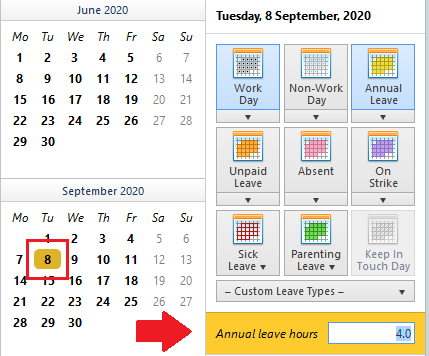
- Select 'Calendar' on the menu toolbar to display the employee's calendar on screen:
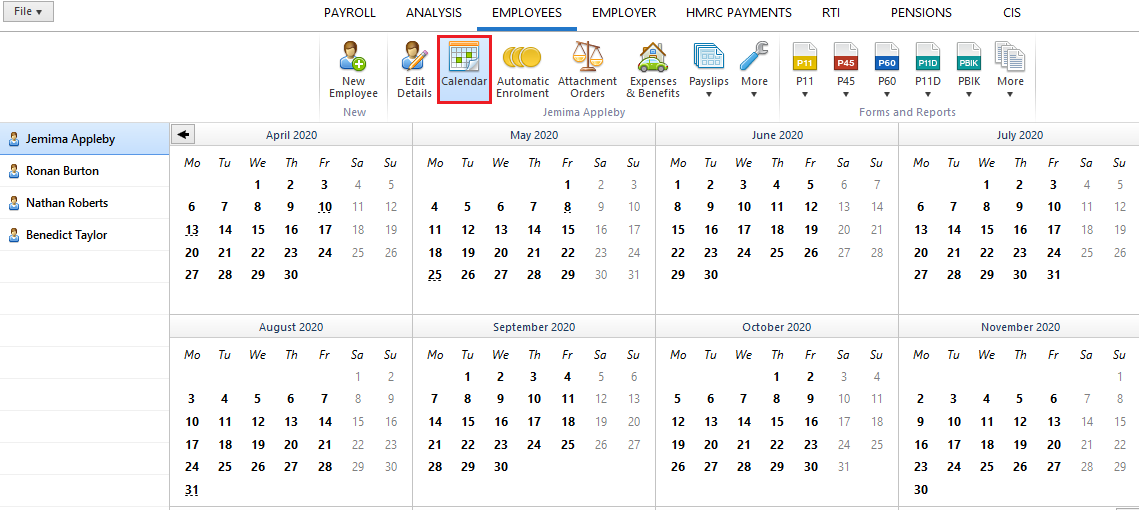
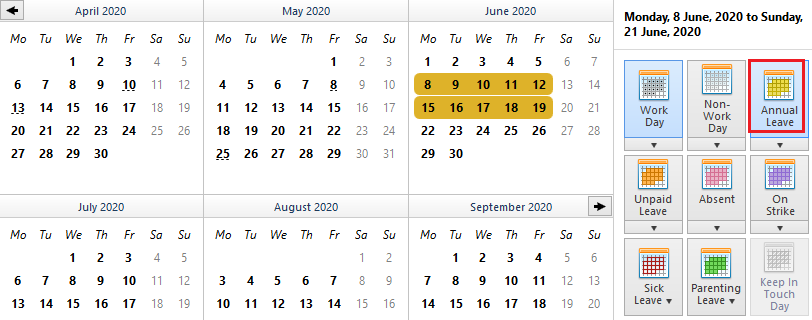
- Select the required date or range of days
- Select Annual Leave from the listing of leave types offered on the right side of the calendar
- The selected day/date range will be flagged in yellow which is associated with this leave type
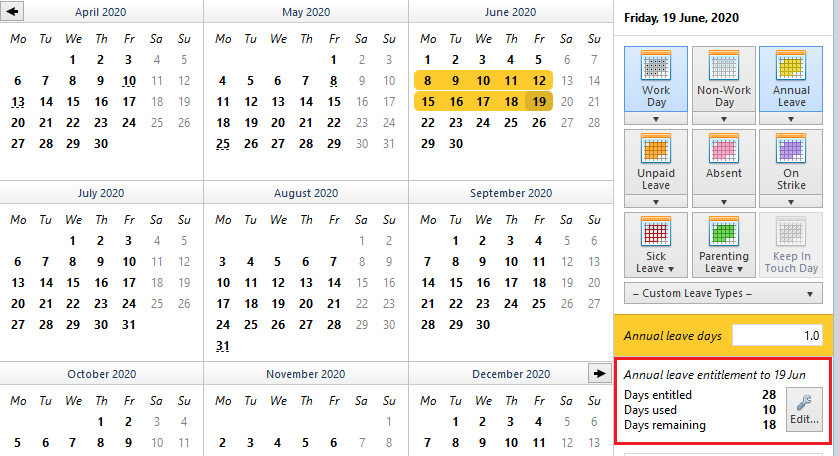
BrightPay will keep a track of an employee's annual leave entitlement based on the annual leave entitlement method set for them:
An employee's annual leave entitlement method can be set within the Employment section of their employee record: 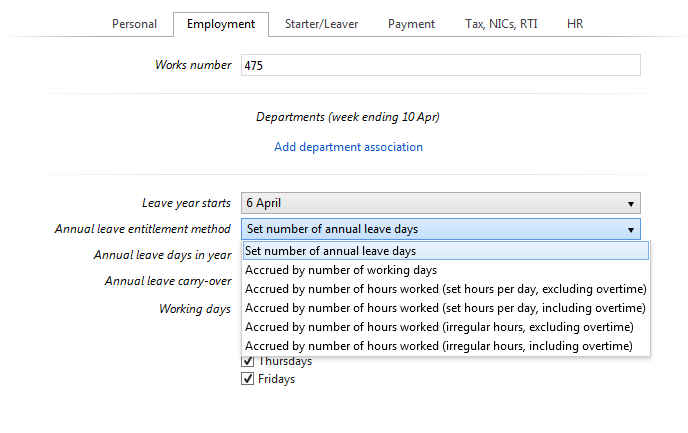
For employees whose annual leave entitlement method is one of the following:
- set number of annual leave days
- accrued by number of working days
- accrued by number of hours worked (set hours per day, excluding overtime)
- accrued by number of hours worked (set hours per day, including overtime)
Part days can be allocated by selecting the applicable date on the calendar and using the dedicated option to the right of the calendar to adjust accordingly.

For employees whose annual leave entitlement method is one of the following:
- accrued by number of hours worked (irregular hours, excluding overtime)
- accrued by number of hours worked (irregular hours, including overtime)
Hours can be allocated by selecting the applicable date on the calendar and using the dedicated option to the right of the calendar to adjust accordingly.
Please note: each annual leave entitlement method catered for in BrightPay is intended for guidance only. Professional advice should be sought in the event of any disputes or if in doubt.
Adjusting an Employee's Annual Leave Entitlement
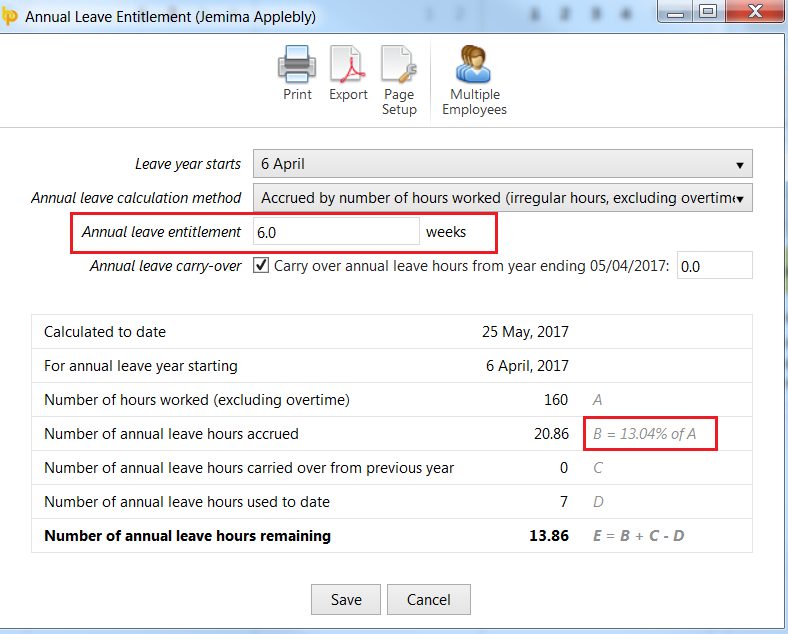
By default, BrightPay will calculate an employee's annual leave entitlement based on the statutory annual leave entitlement of 5.6 weeks (12.07% for hourly paid employees). This can be adjusted by the user, if required e.g. an employee is awarded more due to long service.
- Within the employee record, select the employee's Employment tab
- Amend their Annual Leave Entitlement accordingly
- Save changes
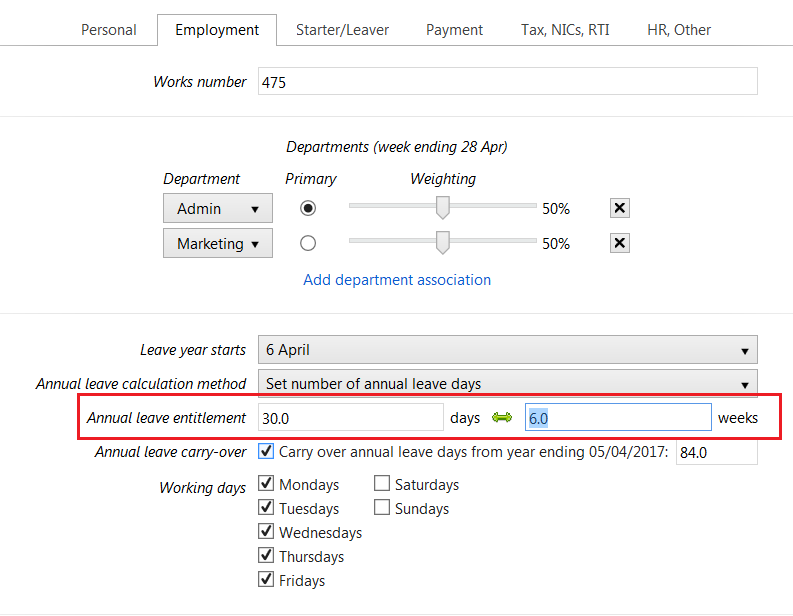
Should the employee be paid by the hour, the percentage applied will also adjust accordingly:
Setting Annual Leave as set number of hours
If you wish to set the annual leave entitlement to a set number of hours for the year, you can follow these steps;
Go to the Employees tab > select the employee from the listing > Employment section. Change the annual leave calculation method to 'Accrued by number of hours worked (irregular hours, excluding overtime)'.
Change the Annual leave entitlement to 0 weeks
Tick the 'Include additional annual leave hours' field and then enter the number of set hours the employee will be entitled to for the year:

Note: If need to remove hours / reduce an employee's entitlement due to them leaving employment, you can either adjust the number of days / hours of entitlement for the leave year or use the adjustment field and put a negative figure in there.
FAQs Annual Leave