
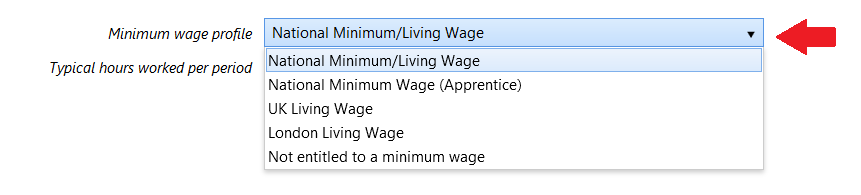
BrightPay can track employee hourly rates against the National Minimum/Living Wage (including apprentices), UK Living Wage, London Living Wage, or they can be marked as not eligible.
- An employee’s minimum wage setting can be set at Employee Details > Employment tab > 'Minimum wage profile', or alternatively, in Payroll via 'Edit Settings' button > Employment tab > Minimum wage profile
- To enable BrightPay to test whether an employee is receiving the National Minimum Wage, BrightPay needs to know the number of hours worked for each period. For hourly paid employees, this is automatically calculated. For non-hourly paid employees, see below.
- Using the employee's age (on pay date), number of hours worked in period, and minimum wage profile, BrightPay can determine the effective hourly rate used and compare it against the required minimum hourly rate.
Hourly Paid Employees
- When BrightPay detects that an hourly paid employee's wage is below the National Minimum/Living Wage it will indicate this using a yellow status bar within 'Payroll'
- If the Minimum Wage Settings are incorrect or you wish to turn off the Minimum Wage flagging you can use the edit button to make the relevant changes.
Non-Hourly Paid Employees (or workforce reporting in general)
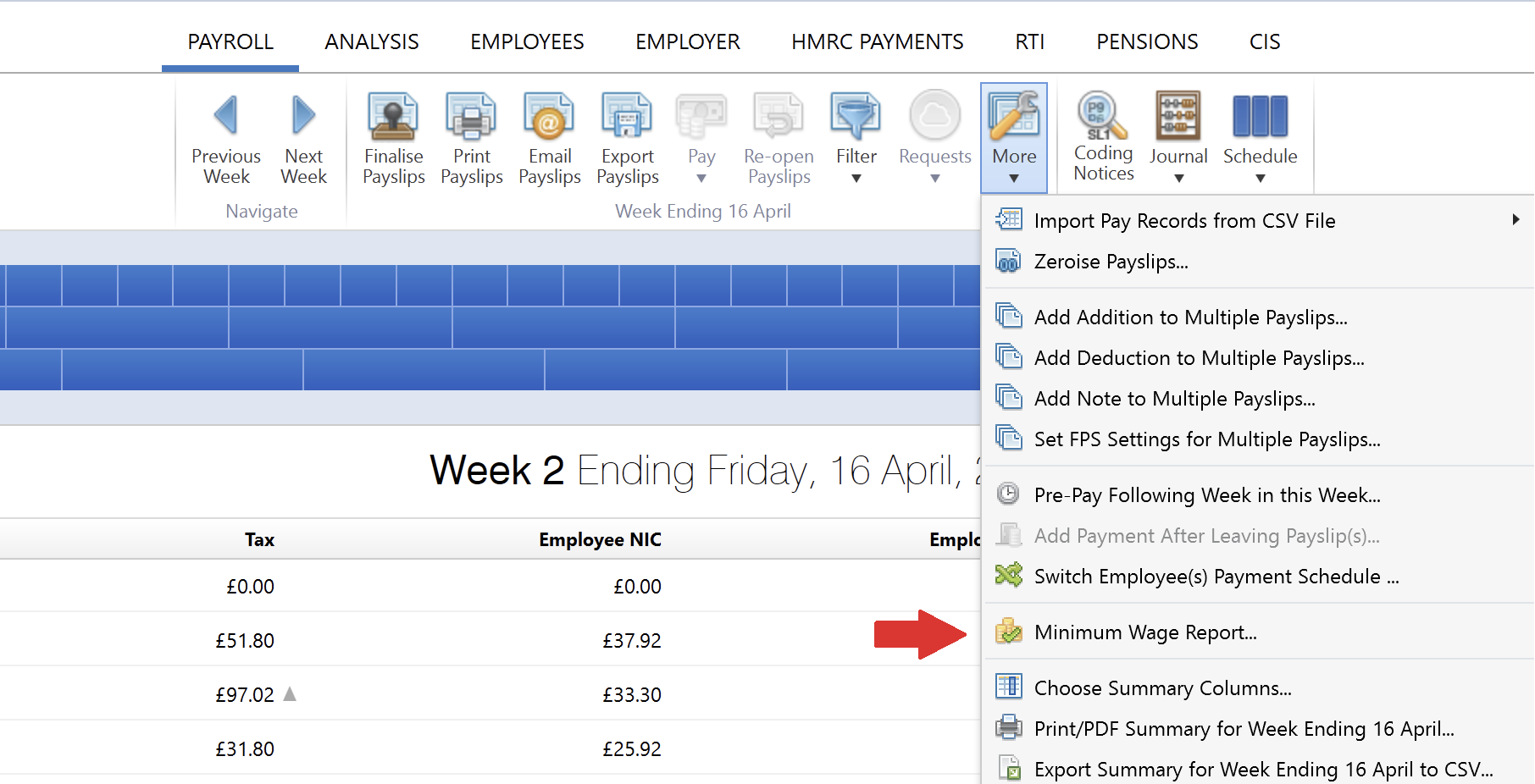
- To help with non-hourly employees (or for workforce reporting in general) there is a feature in Payroll > More > Minimum Wage Report
This allows you to enter/confirm the number of hours worked for each employee and generate a summary to see who passed minimum wage and who didn’t.
The setting ‘Typical hours worked per period' in Employees > Employee > Edit Details > Employment can be used to provide a default value for non-hourly employees.
- This report can be run in both open and closed pay periods:
- Press Continue to see the result for each employee, i.e. Pass or Fail
Some minimum wage fields are available within Analysis for reporting requirements, further information on creating reports can be found here