
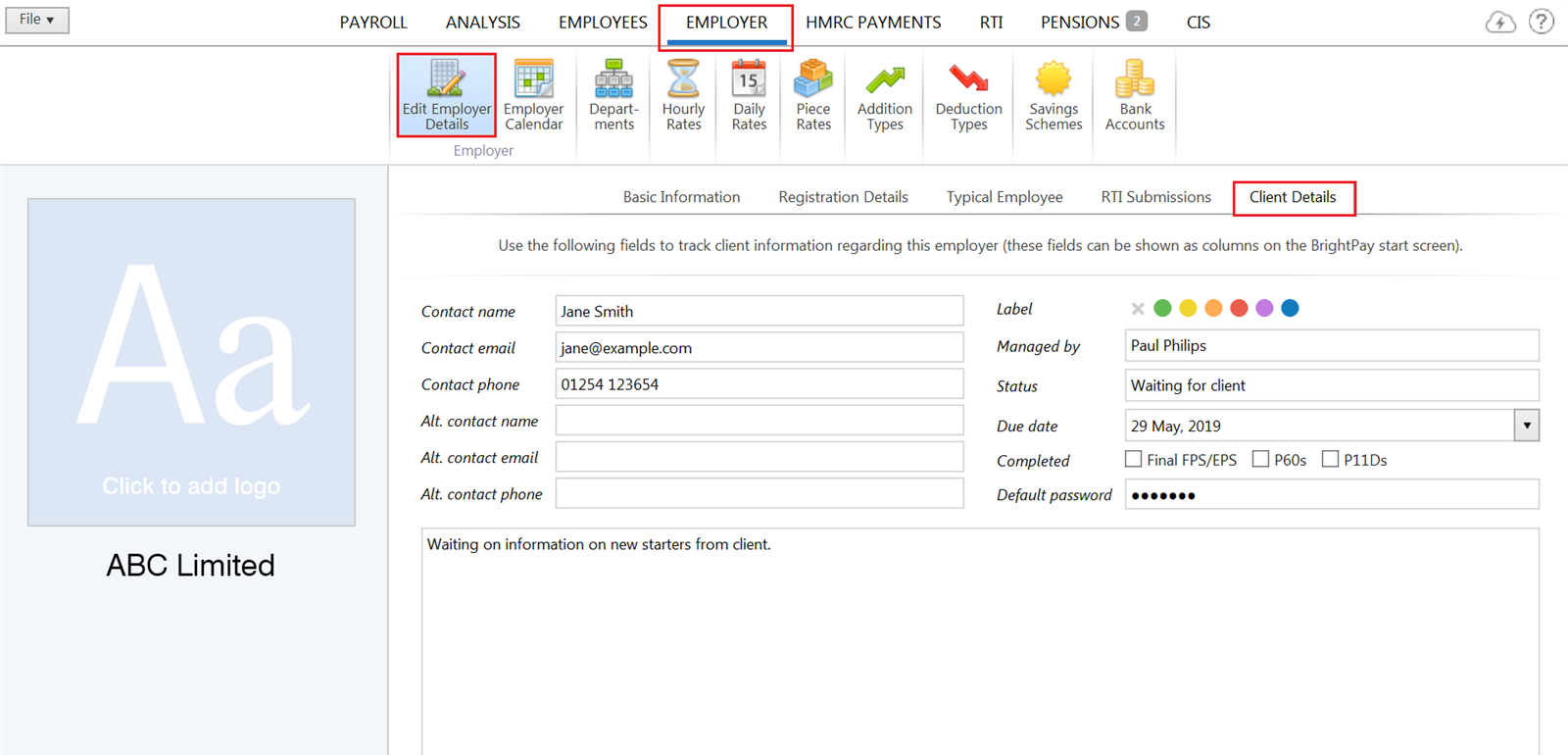
The following client information can be recorded for each employer in BrightPay:
- Contact name, email address and phone number
- Alternative contact details
- Label colour
- Managed by
- Status
- Due date
- Indicator for Final FPS/EPS, P60s, P11Ds
- Default password (for emailing documents)
- Notes
This information can be edited directly from the startup window by right-clicking on an employer and selecting the 'View/Edit Client Details' menu option (this menu also includes a quick one-click link to set a label colour).
Alternatively, the information can be entered via the 'Client Details' tab in Employer > Edit Employer Details when a file is opened in BrightPay.
Perhaps most usefully, these client details can be shown as columns on the BrightPay startup window, enabling you to more effectively manage your client workflows as an individual or across a team.
- To set the columns to appear on the startup window, right click on the open employer screen and select 'Choose columns':
- Tick the desired columns and click OK - the startup window will now be updated to reflect the changes.